


PowerPoint Accessibility: Small Changes, Big Impact

Building on the previous discussion of accessible learning materials, it is practical to take a closer look at PowerPoint since it is one of the most widely used tools for delivering course content. Because of its central role in teaching, it is also one of the most effective places to apply accessibility principles in ways that can immediately improve the learning experience.
PowerPoint includes several built-in features that help ensure slides are readable, well-organized and compatible with assistive technologies. It is important to note that while both the desktop version of Microsoft PowerPoint and PowerPoint Online offer accessibility features, the desktop application includes more robust tools. For this reason, faculty are encouraged to finalize slides in the desktop application to ensure full accessibility, even if materials are initially developed or edited online.
Using PowerPoint’s Accessibility Tools
Start with the Accessibility Checker
PowerPoint can quickly identify common accessibility issues and guide users through the process of resolving them. This is an effective first step before sharing slides with students.
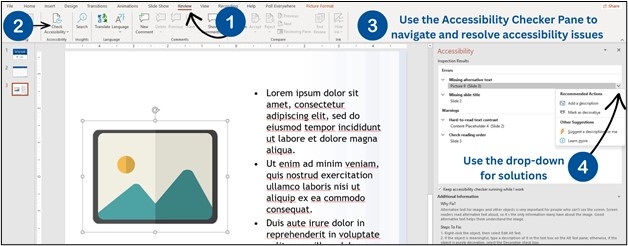
- Go to the Review tab
- Select Check Accessibility
- Review the inspection results panel on the right
In the Accessibility Checker pane, issues are organized by category, and each item includes a brief explanation along with a recommended action. Selecting an item will take you directly to the slide that needs revision, and the drop-down arrow next to each item provides options for making edits. Below are some commonly seen errors.
Missing alternative text
Alt text provides a brief description of visuals for individuals who use screen readers. Descriptions should focus on the meaning or purpose of the visual rather than simply identifying it. There is also an option for PowerPoint to generate a description for you. However, faculty should always review these descriptions for accuracy before publishing.
- Right-click on an image, chart, or SmartArt
- Select Edit Alt Text
- Enter a concise description that conveys the key information
Check Reading Order
When multiple objects are present on a slide, the reading order should be reviewed. This feature is only available in the desktop version and is particularly important for complex slides.
Utilizing the PowerPoint structured layouts and avoiding manually added text boxes helps ensure that content is presented in the intended sequence.
- Go to the Home tab
- Select Arrange, then Selection Pane
- Items are listed in reading order, with the bottom item read first
- Drag items to adjust the order as needed
Putting It into Practice
Accessibility is most effective when it becomes part of a routine rather than an added task. Over time, these small habits can lead to more consistent, well-structured presentations that are easier for all students to follow, review, and retain. Ultimately leading to better learning outcomes and better physicians.